Moment Pro Camera (iOS)
A premium iOS camera app that offers powerful DSLR-style controls, including Auto Exposure Bracketing (AEB). It captures a rapid sequence of 3, 5, or even 7 photos at different exposure levels in one shutter press. Images which then can be HDR merged to create perfect real estate photography.
Tutorial: Rapid-Burst Exposure-Bracketing
Step 1: Install and Prepare ProCamera
- Download Moment Pro Camera from the App Store.
- Open the app and grant Camera, Photos, and Other permissions.
- For best results:
- Use a tripod or steady hold (critical for multi-shot brackets).
- Enable RAW or ProRAW (top bar of settings).
- Turn on Histogram, Focus Peaking, and Zebra Stripes for exposure monitoring.
Step 2: Enable Bracketing in Settings
- Tap the settings gear (often bottom-left or in the menu).
- Go to Exposure and Focus section.
- Toggle Bracketing ON.
- Set image format (RAW/ProRAW preferred) and photo quality.
Step 3: Switch to Photo Mode and Configure
- Ensure you're in Photo mode (main capture screen).
- Set your base exposure using manual controls (ISO, Shutter Speed, EV) or Auto.
- Tap to set focus/exposure point (separate reticles possible on newer versions — double-tap to split focus and exposure).
- Bracketing uses the current exposure as the middle shot and automatically varies others.
Step 4: Capture the Rapid-Burst Bracket
- Frame your shot in the viewfinder.
- Press the large **shutter button** (white/red circle, bottom center).
- Adjust overall EV, ISO, or shutter if using manual controls.
- Press the large shutter button (bottom right, white circle). The app will rapidly capture the bracketed sequence (typically 3 shots; more possible in some setups).
Step 5: Post-Processing for HDR
- Upload your photos to ProPicFix for HDR processing and editing services

ProCamera (iOS)
A premium iOS camera app that offers powerful DSLR-style controls, including Auto Exposure Bracketing (AEB). It captures a rapid sequence of 3, 5, or even 7 photos at different exposure levels in one shutter press. Images which then can be HDR merged to create perfect real estate photography.
Tutorial: Rapid-Burst Exposure-Bracketing
Step 1: Install and Prepare ProCamera
- Download ProCamera from the App Store.
- Open the app and grant Camera and Photos permissions.
- For best results:
- Use a tripod or steady hold (critical for multi-shot brackets).
- Enable RAW or ProRAW in settings for maximum dynamic range.
- Turn on Histogram, Grids, and Zebra Stripes (for highlight/shadow warnings).
- Unlock ProCamera Up via Settings > Shop for full EB features.
Step 2: Switch to Photo Mode and Enable Manual/Semi-Auto
- Launch the app and ensure you're in Photo mode (main capture screen).
- In the Control Panel (usually left side or bottom), activate M (Manual) or SI (Semi-Automatic) mode. Bracketing works best here.
Step 3: Configure Exposure Bracketing
- With ProCamera Up active, an EB (Exposure Bracketing) button appears in the viewfinder.
- Tap the EB button to open the Exposure Bracketing dial.
- Adjust the blue markers to set the EV spread (up to ±7 stops possible).
- Example: Standard 3-shot bracket at -2 / 0 / +2 EV.
- You can shift the middle exposure away from 0 if needed.
- Go to Settings > Exposure Bracketing for advanced options:
- Number of shots: 3, 5, or 7.
- Enable AMEB (Advanced Manual Exposure Bracketing) for asymmetric spreads (e.g., -2 / 0 / +1).
- Choose file format (RAW recommended).
Step 4: Compose, Focus, and Capture the Rapid Burst
- Frame your shot in the viewfinder.
- Tap the screen to set focus and/or exposure point (ProCamera supports split focus/exposure control).
- Adjust overall EV, ISO, or shutter if using manual controls.
- Press the large shutter button (bottom right, white circle).
- The app captures the entire bracketed sequence rapidly (one press = multiple shots).
- You'll hear multiple shutter sounds for larger brackets (5+ shots).
- Images save as separate files in your Photos app or chosen album.
Step 5: Post-Processing for HDR
- Upload your photos to ProPicFix for HDR processing and editing services

Open Camera (Android)
A free Android camera app that offers powerful DSLR-style controls, including Auto Exposure Bracketing (AEB). It captures a rapid sequence of photos at different exposure levels (e.g. underexposed, normal, overexposed) in one shutter press. Images which then can be HDR merged to create perfect real estate photography.
Tutorial: Rapid-Burst Exposure-Bracketing
Step 1: Install and Prepare Open Camera
- Download and Install Open Camera.
- Open the app and grant Camera, Storage, and Location permissions (location optional for geotagging).
- For best results:
- Use a tripod or steady hold (critical for multi-shot brackets).
- Enable RAW if supported (under photo settings) for better post-processing.
- Performance depends on your device's Camera2 API support. Enable it for faster, more reliable bracketing (up to 5 shots at ±3 stops).
Step 2: Enable Camera2 API (recommended for bracketing)
- Tap the gear icon (Settings) in the top-right or bottom bar.
- Go to Settings > Camera API .
- Toggle Bracketing ON.
- Select Camera2 API (if availabe on our device). This unlocks manual controls, faster bracketing, and better quality. If unavailable, fall back to the legacy API.
Step 3: Configure Exposure Bracketing Settings
- In Settings, go to Photo settings
- Look for Exposure Bracketing options:
- Exposure Bracketing Shots - Set the total number of images (e.g., 3 for -1 / 0 / +1)
- Exposure Bracketing Stops - Set the EV difference (e.g., 1 or 2 stops)
- Common setup: 3 shots at ±1 stop for quick HDR
Step 4: Switch to Exposure Bracketing Mode
- In the main viewfinder, tap the three-dot menu or popup menu icon (often top-right).
- Under Photo Mode, select Expo {} (Auto Exposure Bracketing / AEB).
- The icon will show as Expo {} when active.
Step 5: Compose, Focus, and Capture the Burst
- Frame your shot.
- Tap the screen to set focus and exposure point (or use manual focus if enabled).
- Adjust Exposure Compensation (EV slider) if you want to shift the whole bracket.
- Press the large shutter button (blue camera icon, usually bottom-center).
- Open Camera fires the rapid-burst sequence almost instantly (faster with Camera2 API).
- The photos save as separate files (e.g., IMG_001.jpg, IMG_002.jpg) in your chosen folder (default: OpenCamera).
Step 6: Post-Processing for HDR
- Upload your photos to ProPicFix for HDR processing and editing services

ProShot (Android)
A powerful DSLR-style app for Android that supports EV (exposure value) bracketing in Photo mode. This feature captures a rapid sequence of photos (typically 2–3 shots) at different exposure levels in a single shutter press — often described as “zero-lag” bracketing on supported hardware. It’s ideal for HDR merging of high-contrast scenes. Perfect for real estate photography.
Tutorial: Rapid-Burst Exposure-Bracketing
Step 1: Prepare the App and Your Phone
- Open ProShot on your Android phone.
- Grant camera, storage, and any other permissions.
- For best results:
- Use a tripod or steady hold (critical for multi-shot brackets).
- Enable RAW + JPEG if your phone supports it (top-left format button).
- Turn on the histogram (in settings or viewfinder overlay) to check exposure.
- Set your base exposure in Auto, Program (P), or Manual (M) mode first — the app can dynamically switch modes.
Step 2: Access the Drive Dial adn Select Photo Mode
- Look at the bottom bar of the viewfinder. You’ll see the Drive Dial (a circular mode selector, similar to a DSLR mode dial).
- Tap or swipe the Drive Dial to switch to Photo mode. Photo mode is the default for stills and includes optional bracketing.
Step 3: Enable anc Configure EV Bracketing
- In Photo mode, open the Photo-specific settings (often via a menu, sub-options on the Drive Dial, or a dedicated button in the bottom/top bar).
- Toggle EV Bracketing ON. This is explicitly listed in the official ProShot documentation for Photo mode.
- Configure the bracketing (if options appear):
- Number of shots: Usually 2 or 3 (e.g., underexposed, normal, overexposed).
- EV steps: Adjust the exposure difference (e.g., ±1, ±2, or up to ±3 stops in 1/3-stop increments).
- Type: Some versions let you choose exposure compensation, ISO, or shutter speed bracketing.
- If no advanced options show, it uses sensible defaults (3 shots with balanced EV spread).
Step 4: Compose, Focus, and Shoot the Bracketed Burst
- Frame your shot in the viewfinder.
- Tap the screen to set focus/exposure point (or use manual focus with focus peaking for precision). Drag the focus box if needed.
- Adjust exposure compensation slider (bottom bar) if you want to shift the entire bracket.
- Press the large shutter button (white circle, usually bottom center). Hold briefly if needed, but one tap is usually enough for the full rapid-burst sequence.
- ProShot will capture the bracketed photos in quick succession (zero-lag where hardware allows).
- The images save automatically to your chosen folder (check settings for storage location). They appear as separate files (e.g., IMG_0001.jpg, IMG_0002.jpg, etc.).
Step 5: Post-Processing for HDR
- Upload your photos to ProPicFix for HDR processing and editing services
You take the photos, and we will make them look professional!
Easy 4-Step Process
Load a 'Bracketing' App
Take Your Photos
Upload Image Files
Download Finished Photos
Single Listing
Process up to 32 photos. Includes merging of bracketed images, brightening of images, perspective correction, and enhanced window-views.
$75
total
Multiple Listings
3 or more properties up to 32 photos each. Includes merging of bracketed images, brightening of images, perspective correction, and enhanced window-views. (Contact ProPicFIx for pricing on larger numbers.)
$65
per listing
Specialty Editions
Special edits such as object removal, branding, labeling or highlights, day to dusk conversion.
$3
per photo
Camera Setup
Take all photos in landscape (horizontal) position. Flash off. Use of a tripod is highly recommended. This will stabilize the camera for the 2 seconds required for multiple exposure images. If handheld, work on a stable grip to keep your device very still for two seconds after tapping the shutter button. Use grid feature and leveling feature to assist proper centering and leveling of images. Clean lens with microfiber cloth. Use level feature.
Interior Photography
Camera Settings
Indoor photos should all be taken in wide angle mode. On most devices labeled as 0.5x zoom mode, which is about equivalent to a 14mm wide-angle lens. This is a good range for real estate photos. All photos will be taken in horizontal position. Flash off.
Interior Lighting
Preferably take photos during bright daylight while also avoiding any angles aiming directly toward the sun. Curtains and blinds should be in a traditional open position allowing optimum natural lighting. Turn on all interior lights, including decorative lighting and gas fireplaces.
Interior Environment
Clean and declutter. Ensure spaces are spotless and free of loose objects. Remove personal items, excess furniture, and unnecessary distractions to make rooms feel more spacious. Most staging is about object removal, but adding specific items can be helpful as well. Fresh flowers, table settings, and neatly arranged pillows can make the space more inviting. Make the beds, remove items from the sink area, and whatever you do . . . never forget to close the toilet covers!
Camera Aiming
Optimum interior camera height is between 4ft and 5ft, aiming parallel to the floor and ceiling. (fig.1) Generally, with 8ft to 10ft ceiling heights, the camera height should be the vertical midpoint between the floor and ceiling. The resulting image will include an equal amount of floor and ceiling. However, keep that standard 4-5ft height even for rooms with much higher ceilings. See figure.
Directional Tips
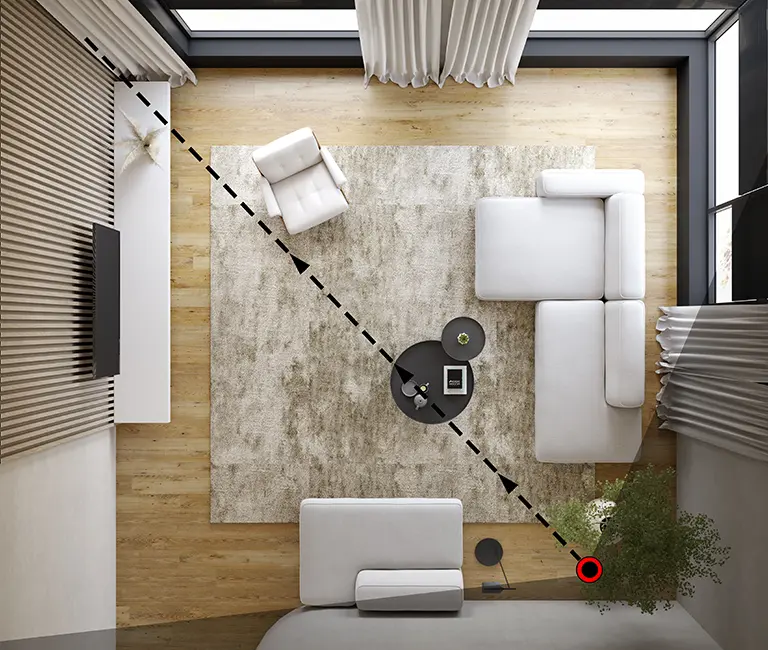
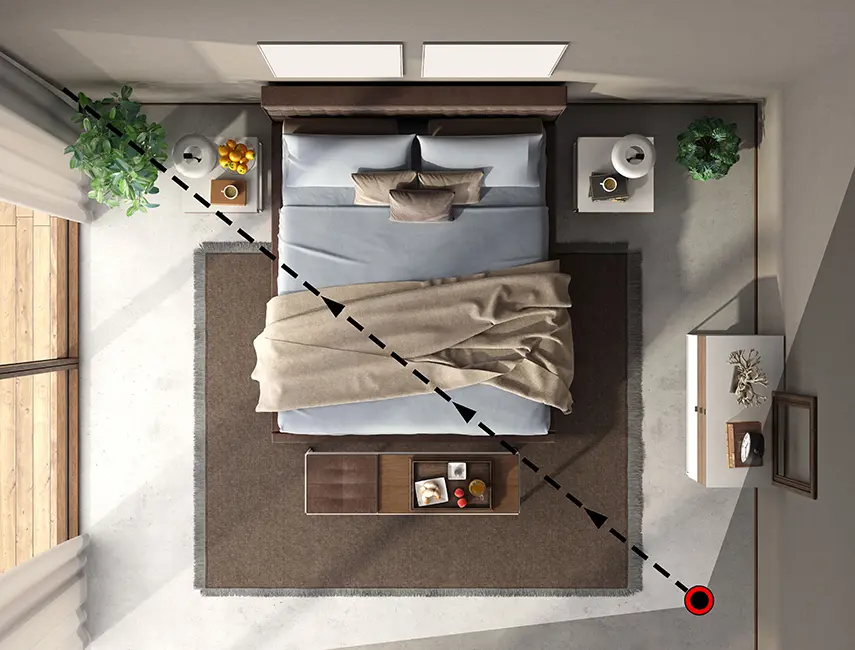
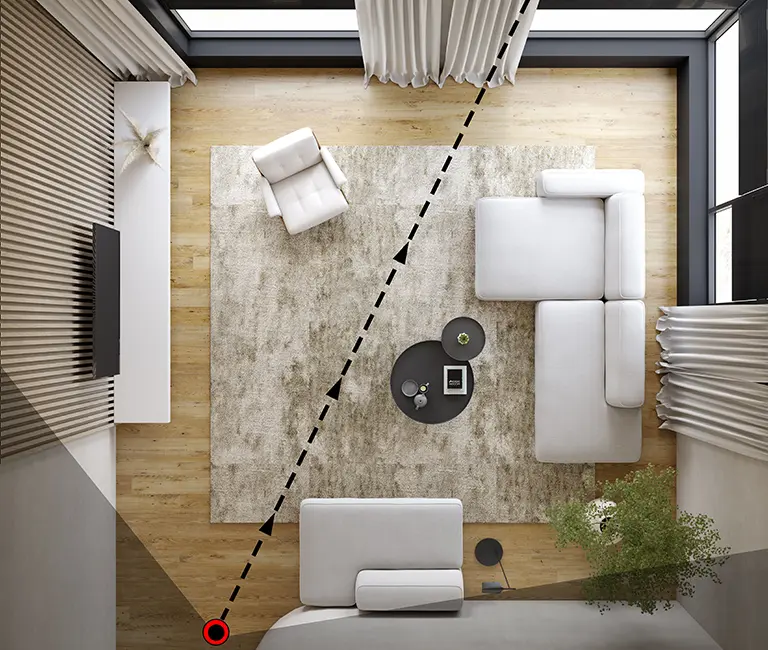
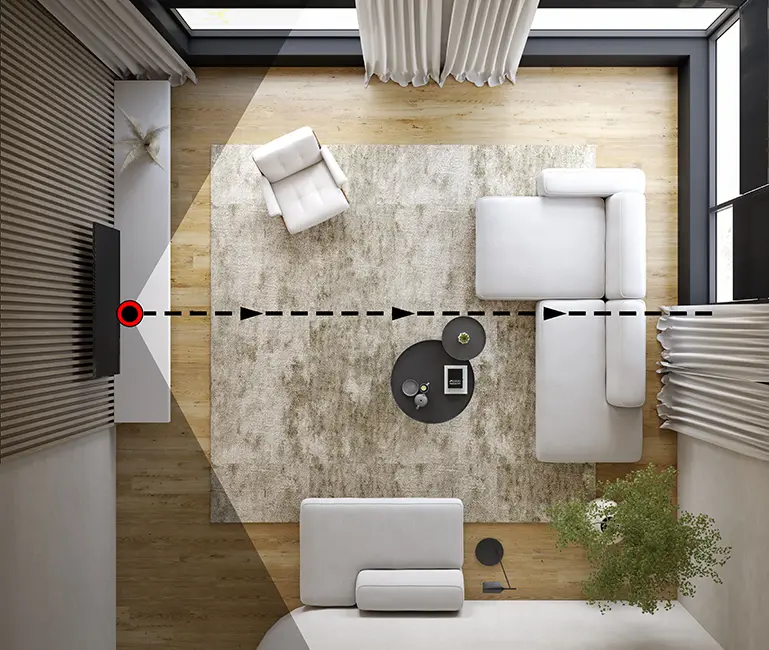
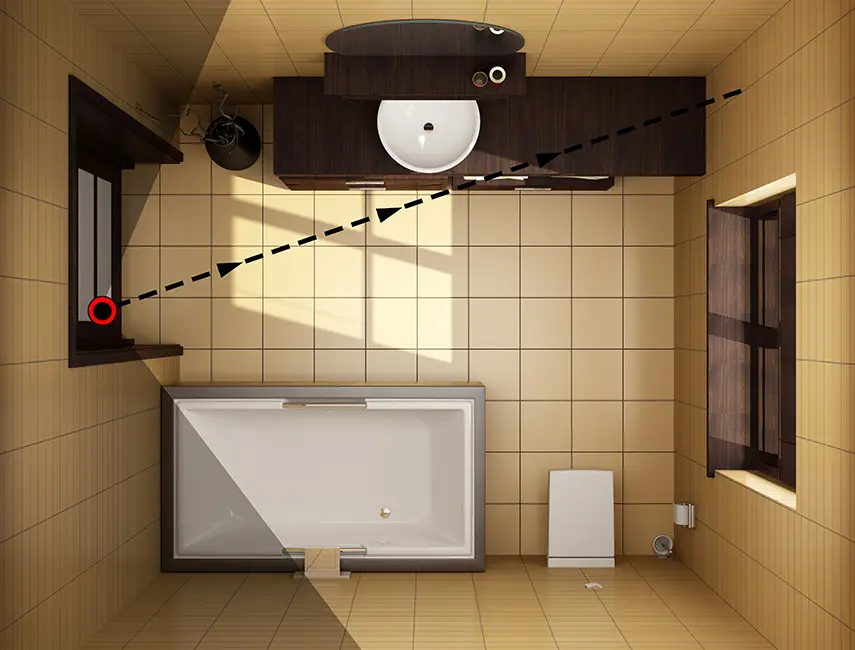
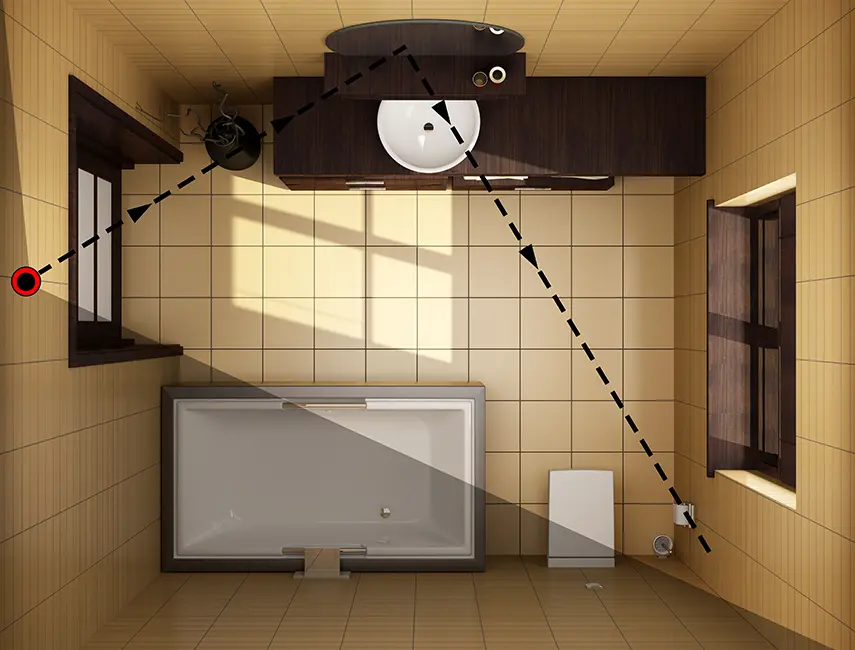
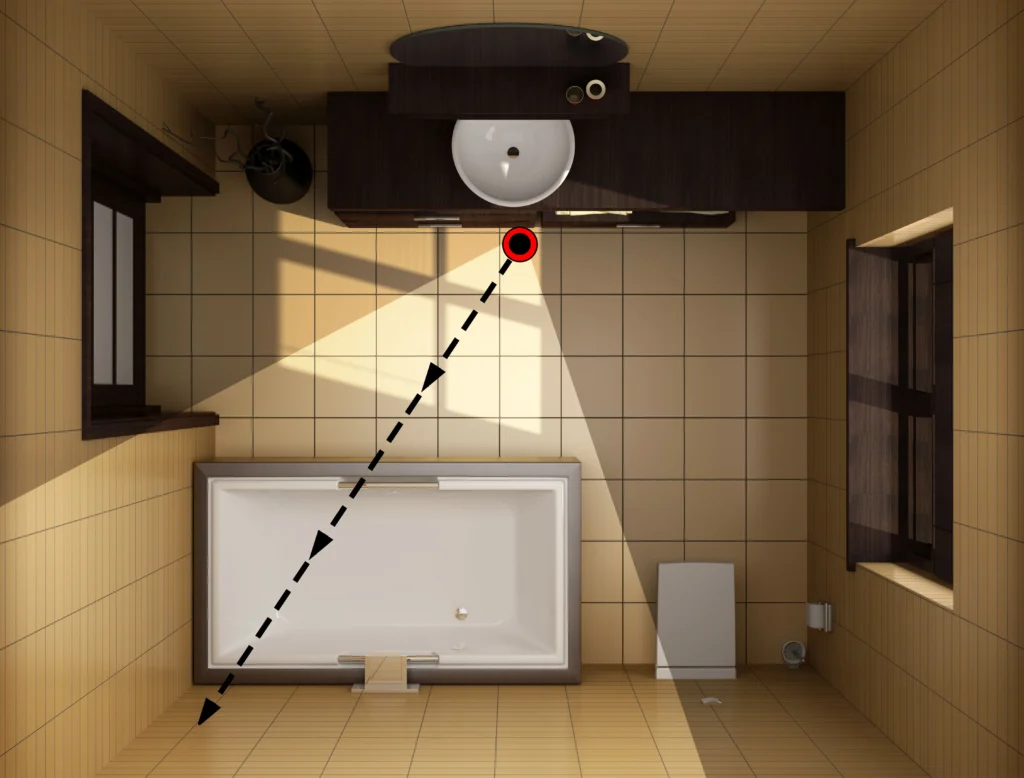
The most desirable angle is aiming from one corner of a room into the opposite corner. (fig.2, fig.3) Move the line of sight to avoid shooting the back of furniture. Also try to include as many windows as possible.(fig.4) A corner close to the walking path is often the best setup location. Remember, the purpose of the photo is to welcome you into the space – never to block your path.
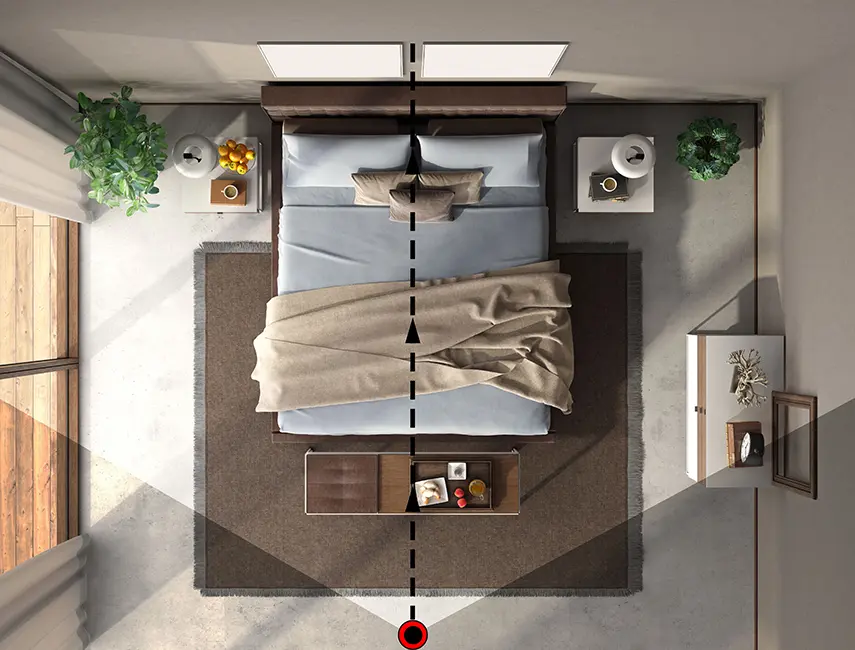
Another great angle can be pointing directly toward the center of a wall.(fig.5, fig.6) The wide angle should include the two adjacent walls offering another room enlarging perspective.
Small Rooms
Small rooms like bathrooms and walk-in closets can be the most difficult to frame. Often impossible to capture a proper proportion of the ceiling and floor like other rooms, there is a natural tendency to want to turn the smartphone into portrait orientation. Never do this – as it will cause the room to look very small. Do not be afraid to include a bit of the doorframe. One common technique of professional photographers is the ‘split-frame’ angle, combining the narrow room and narrow hallway for one wide image. Another unique shot can be strategically aiming toward the bathroom mirror at an angle that shows more of the room.
Key Features
Photographing a balcony view or stairway view are rare cases where the smartphone will be pointing down rather than level. Close-up photos of specific features like fireplaces, farmhouse sinks, barn doors, or high-end fixtures and appliances can be a great visual addition for a property listing. These unique snapshots are the only interior photos that can be better in 1x standard zoom rather than the 0.5x wide angle.
Step Back
Distortion levels – or how far out-of-vertical the lines toward the edge of the frame are distorted – will vary by device. But keep in mind distortion correction will essentially clip the top corners of the room. To compensate, after framing the intended target in your viewer screen, moving back a couple feet further (when possible) to allow for distortion correction is the best practice.
Practice a few shots before beginning your first property to familiarize yourself with the basic setup and process.
Take Extra Photos. Try different perspectives and decide later which are worthy of editing for the listing. Allow yourself some solid choices before uploading your photo set to propicfix.
Exterior Photography
Lighting
A clear sunny day is generally preferred – with the sun at its highest point for less shadowing. The best photos will be with the sun behind you. Try to time it so the sun hits the front of the property. Always include the important curb appeal shot with the front yard and/or entryway.
Camera
Nearly all exterior photos should be taken in standard 1x zoom mode rather than wide-angle 0.5x as was used for interior photos. Only use wide-angle when it is entirely necessary to frame the entire structure or capture deck and patio shots.
Camera Aiming
Unlike indoor photos – height can be quite variable for outdoor photography. Take photos from knee level to as high as your arm will reach - decide later which look best. Highlight deck and patio views from multiple perspectives. Trees and obstacles will dictate which angles are available. Always be sure to get one straight-on shot of the front of the house most likely to be used for your listing cover photo.